Photo Edits
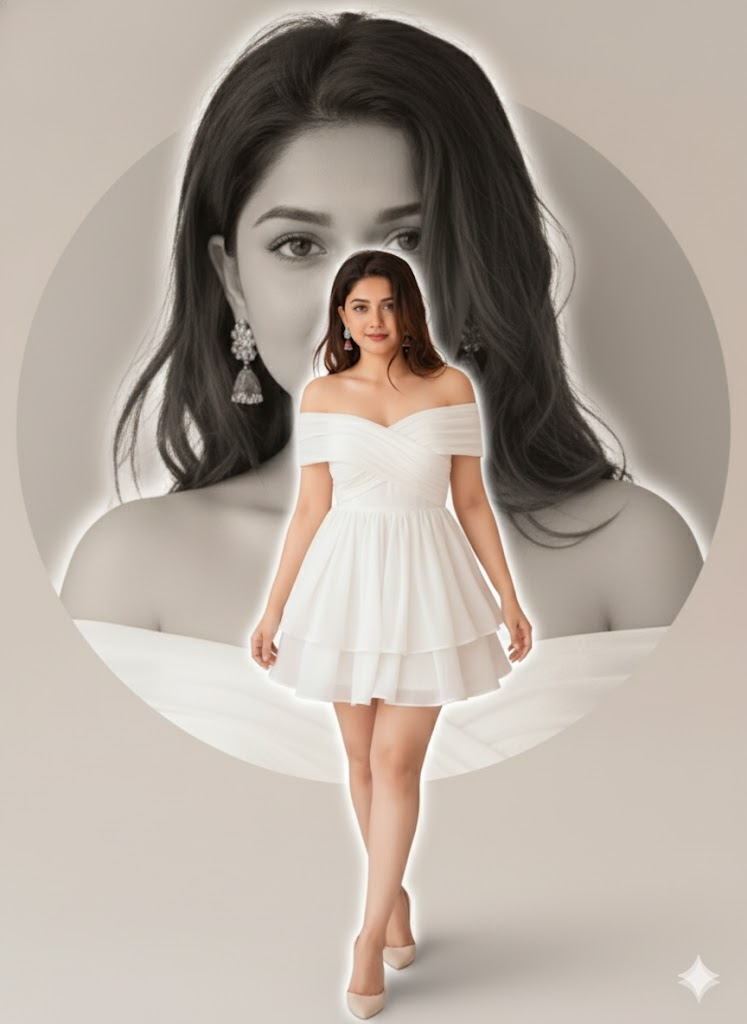
Transform the uploaded image into a Ghibli-inspired anime scene. Keep the main subject, but render the background and character in the iconic Ghibli art style with soft, painted textures, gentle lighting, and a touch of nostalgic whimsy. --ar 2:3 --style raw --v 6
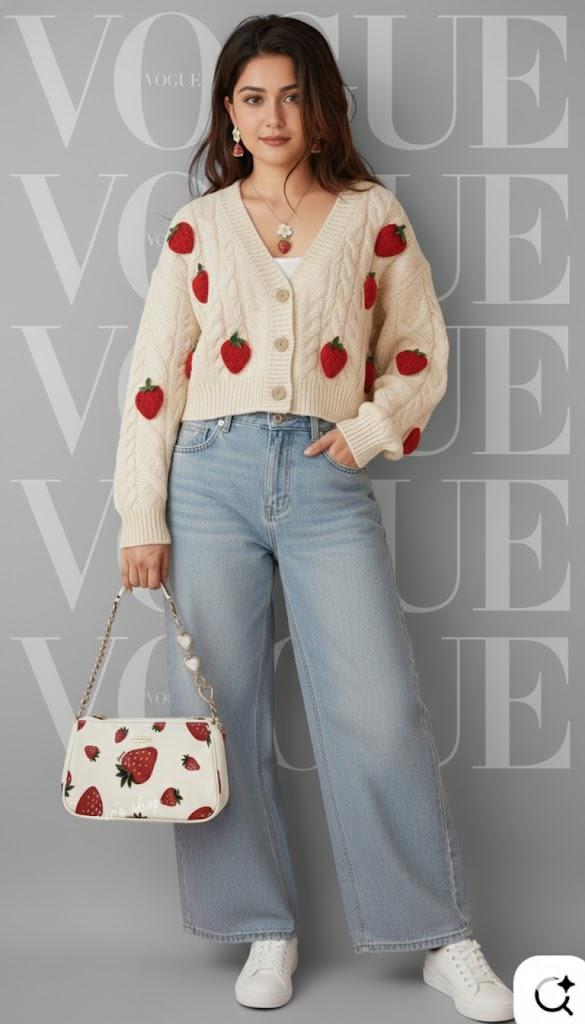
Create a vintage film photograph look from the uploaded image. Apply a grainy texture, faded colors with a yellow or green tint, and subtle light leaks. The composition should feel candid, as if taken on a 1970s 35mm camera. --ar 2:3 --style raw --v 6
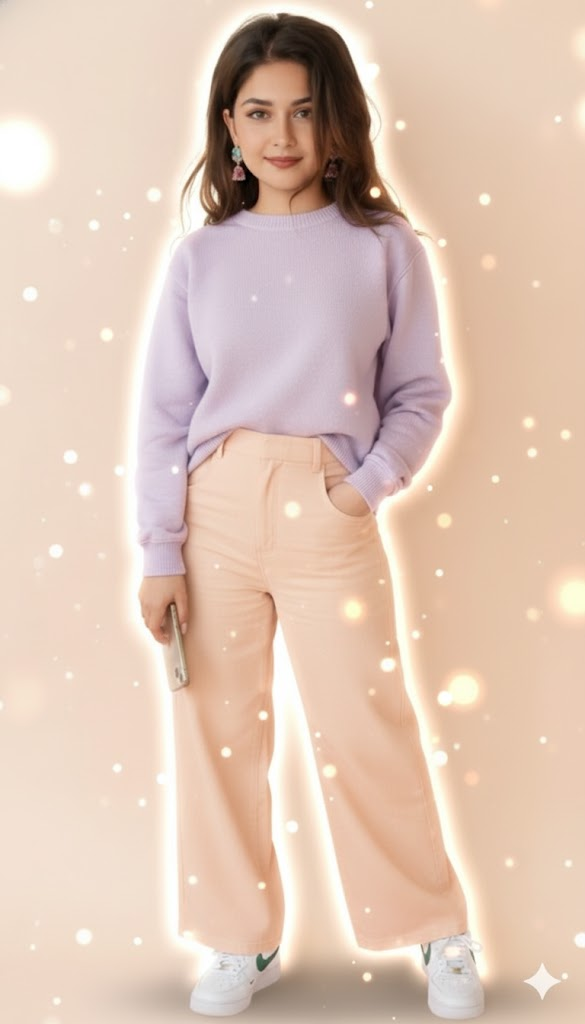
Turn the uploaded photo into a dramatic black and white portrait. Use high contrast lighting (chiaroscuro) to create deep shadows and bright highlights, emphasizing the subject's expression and features. Add a slight film grain. --ar 2:3 --style raw --v 6
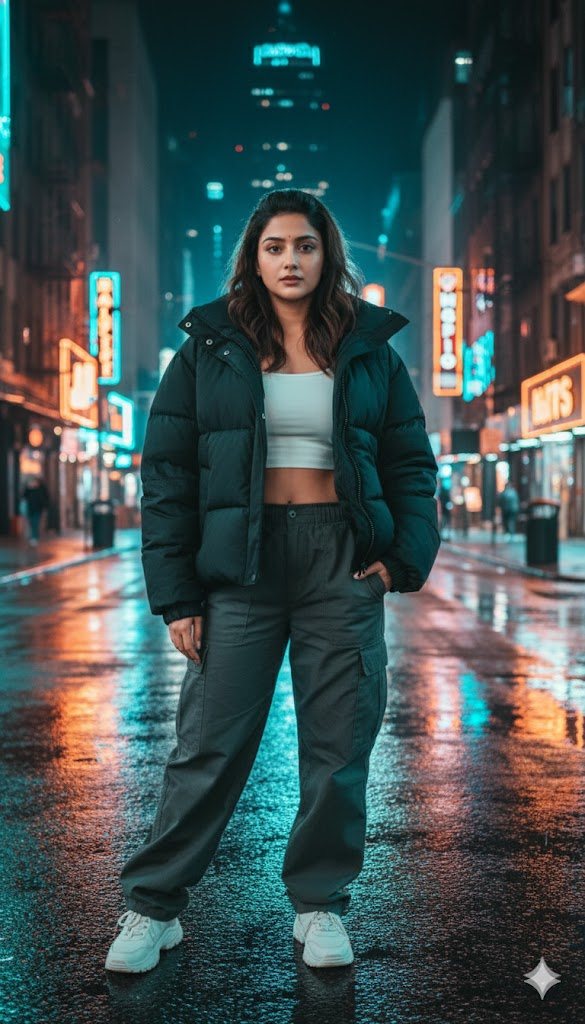
Reimagine the uploaded image in a vibrant, pop art style reminiscent of Andy Warhol. Use bold, contrasting colors in flat blocks, and create a silkscreen print effect. The subject should be repeated in a grid with different color schemes. --ar 1:1 --style raw --v 6
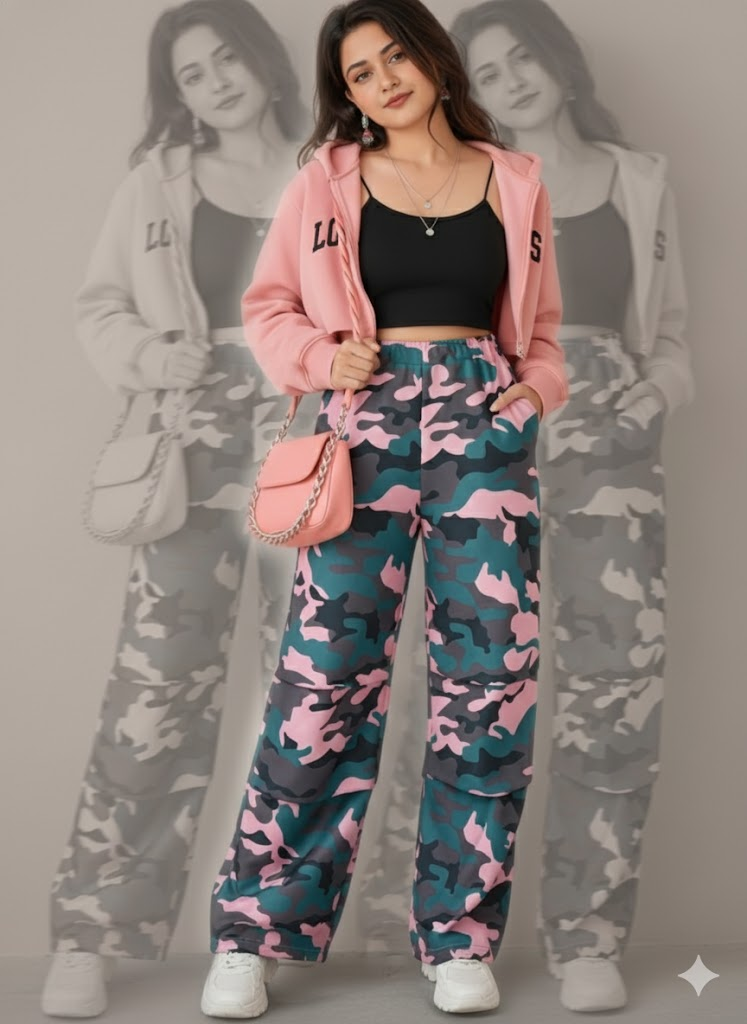
Convert the uploaded image into a cyberpunk-themed scene. Add neon lights, holographic elements, and futuristic details to the background and subject's clothing. The color palette should be dominated by electric blues, purples, and pinks. --ar 2:3 --style raw --v 6
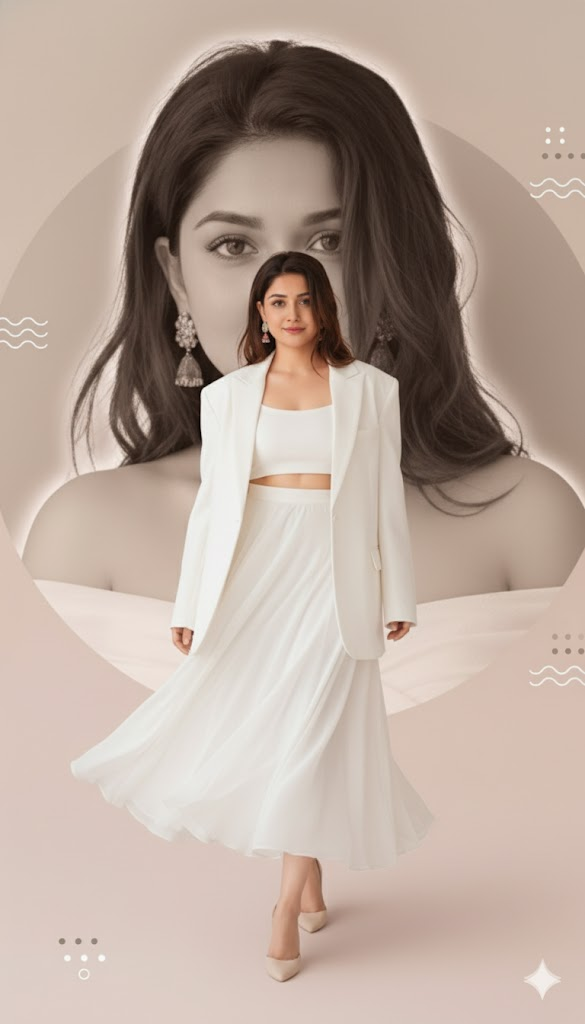
Give the uploaded photo a fantasy art makeover. Transform the subject into a mythical creature (e.g., an elf, a fairy, or a sorcerer) and place them in an enchanted forest or a magical landscape with glowing elements and ethereal lighting. --ar 2:3 --style raw --v 6
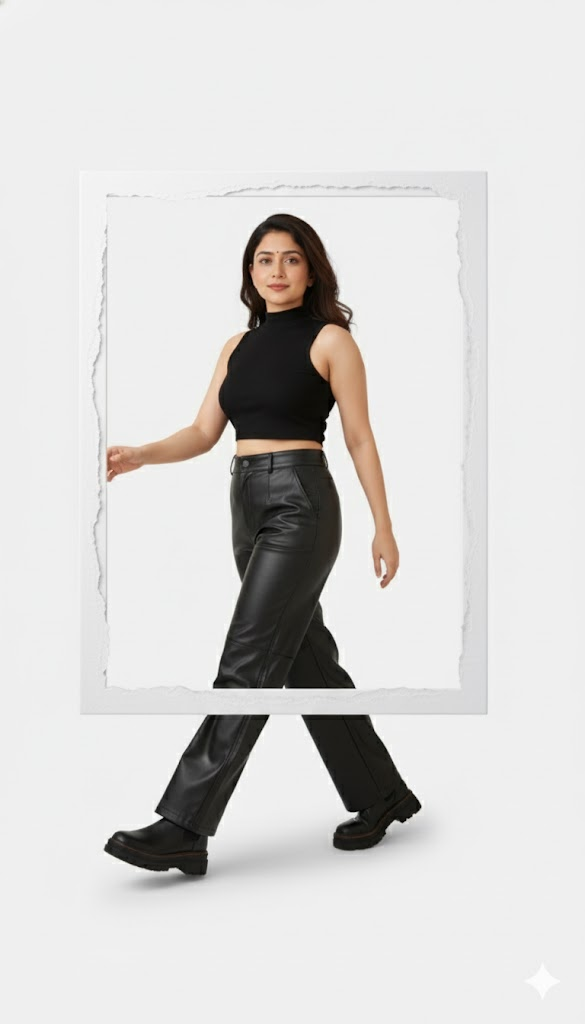
Create a double exposure effect with the uploaded image. Merge the subject's portrait with a nature scene, like a forest, a mountain range, or a galaxy. The two images should blend seamlessly, with the background texture visible through the subject. --ar 2:3 --style raw --v 6
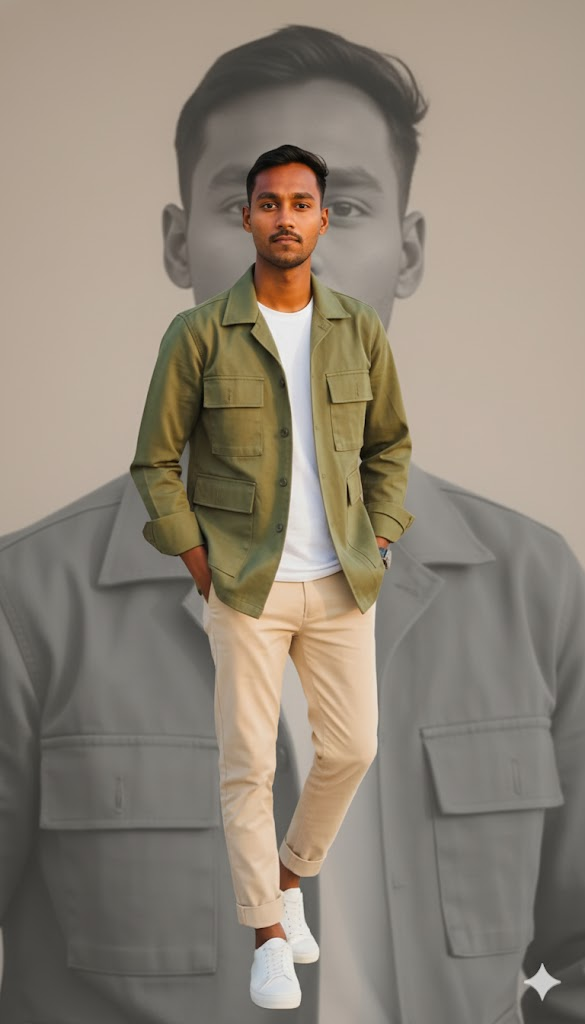
Turn the uploaded image into a watercolor painting. The final result should have soft, blended colors, visible brushstrokes, and the texture of watercolor paper. The edges should be slightly irregular, like a real painting. --ar 2_3 --style raw --v 6
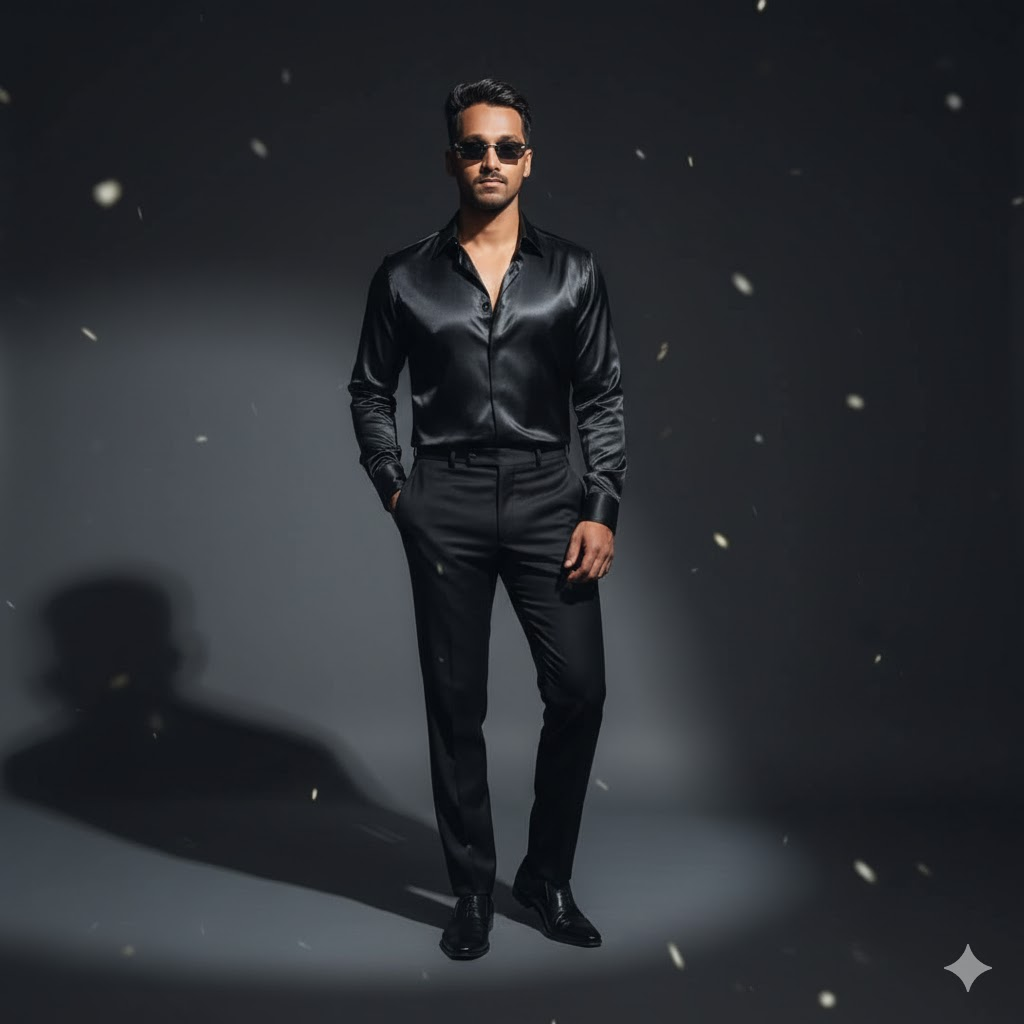
Apply a 'golden hour' lighting effect to the uploaded photo. Bathe the scene in warm, soft, golden light, creating long shadows and a dreamy, romantic atmosphere. Enhance the colors to be rich and saturated. --ar 2:3 --style raw --v 6
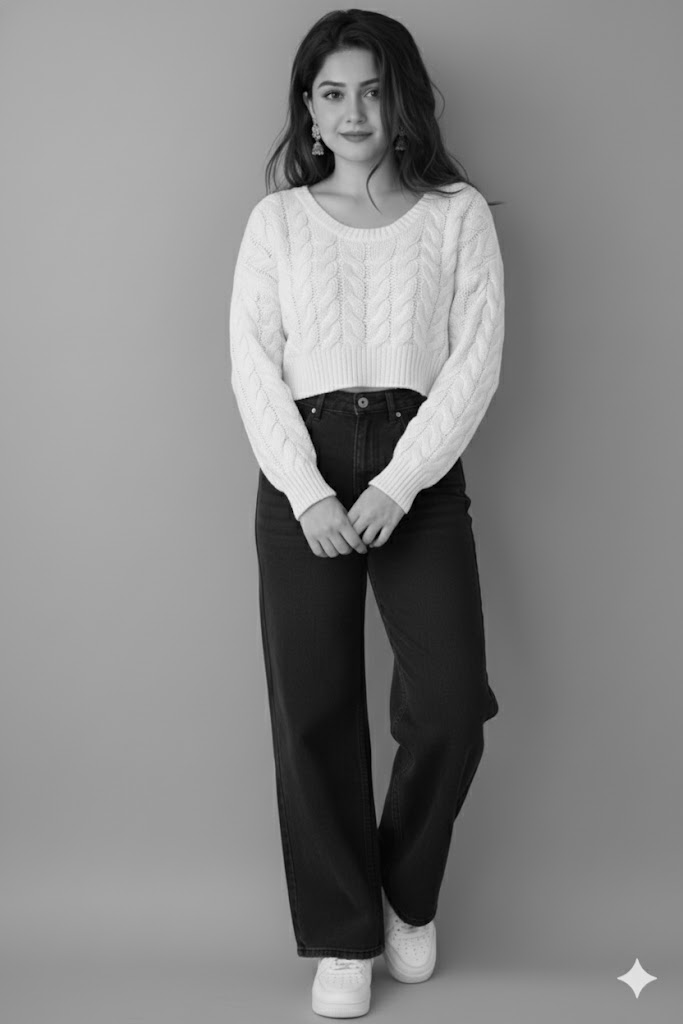
Create a 'glitch art' version of the uploaded image. Introduce digital artifacts, pixel sorting, color channel shifts, and scan lines to give the photo a distorted, abstract, and chaotic aesthetic. --ar 2:3 --style raw --v 6
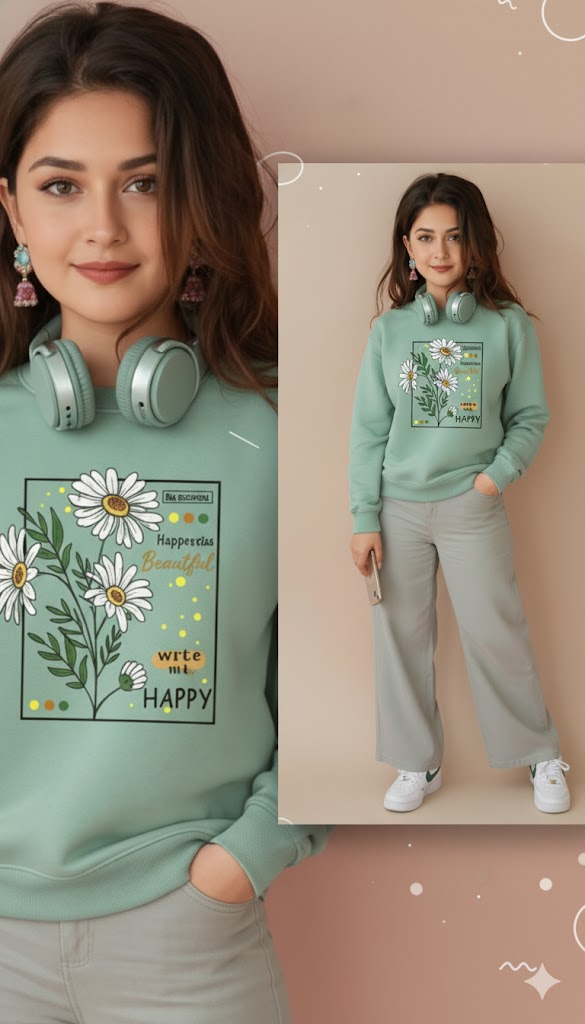
Transform the uploaded image into a Ghibli-inspired anime scene. Keep the main subject, but render the background and character in the iconic Ghibli art style with soft, painted textures, gentle lighting, and a touch of nostalgic whimsy. --ar 2:3 --style raw --v 6
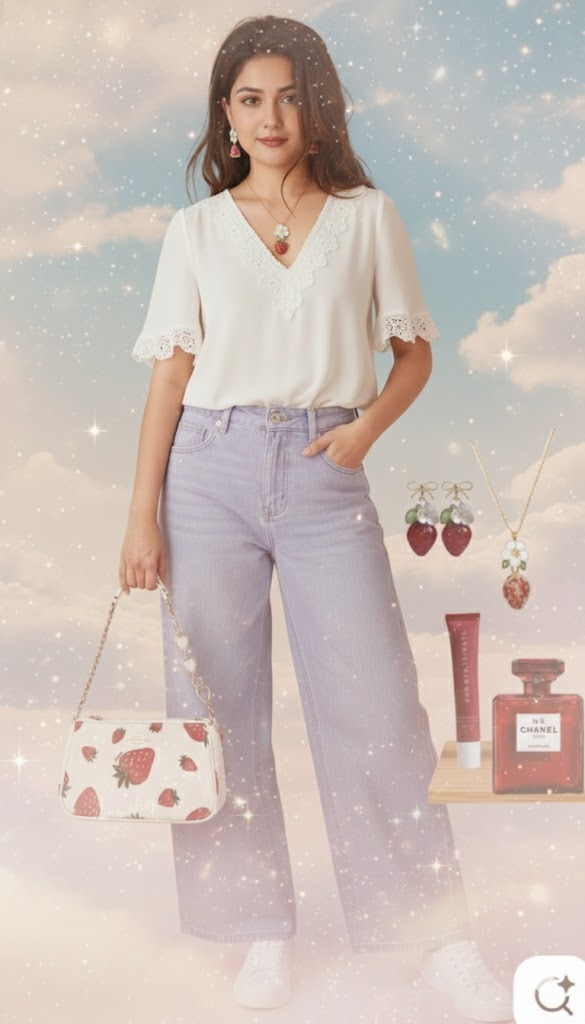
Create a vintage film photograph look from the uploaded image. Apply a grainy texture, faded colors with a yellow or green tint, and subtle light leaks. The composition should feel candid, as if taken on a 1970s 35mm camera. --ar 2:3 --style raw --v 6
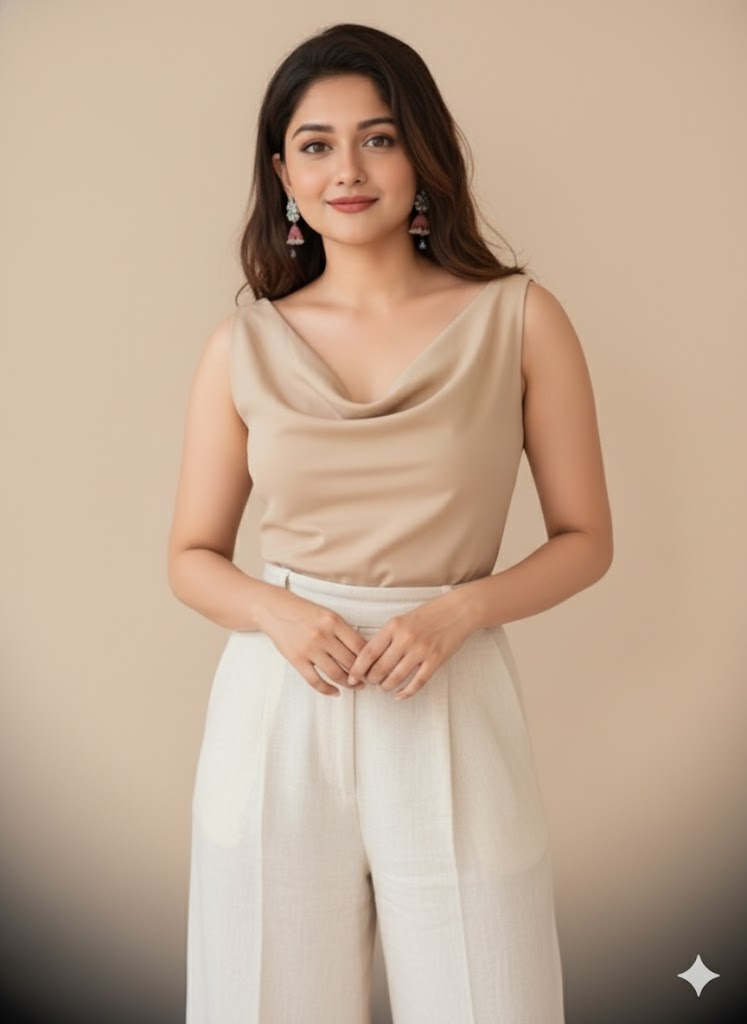
Turn the uploaded photo into a dramatic black and white portrait. Use high contrast lighting (chiaroscuro) to create deep shadows and bright highlights, emphasizing the subject's expression and features. Add a slight film grain. --ar 2:3 --style raw --v 6
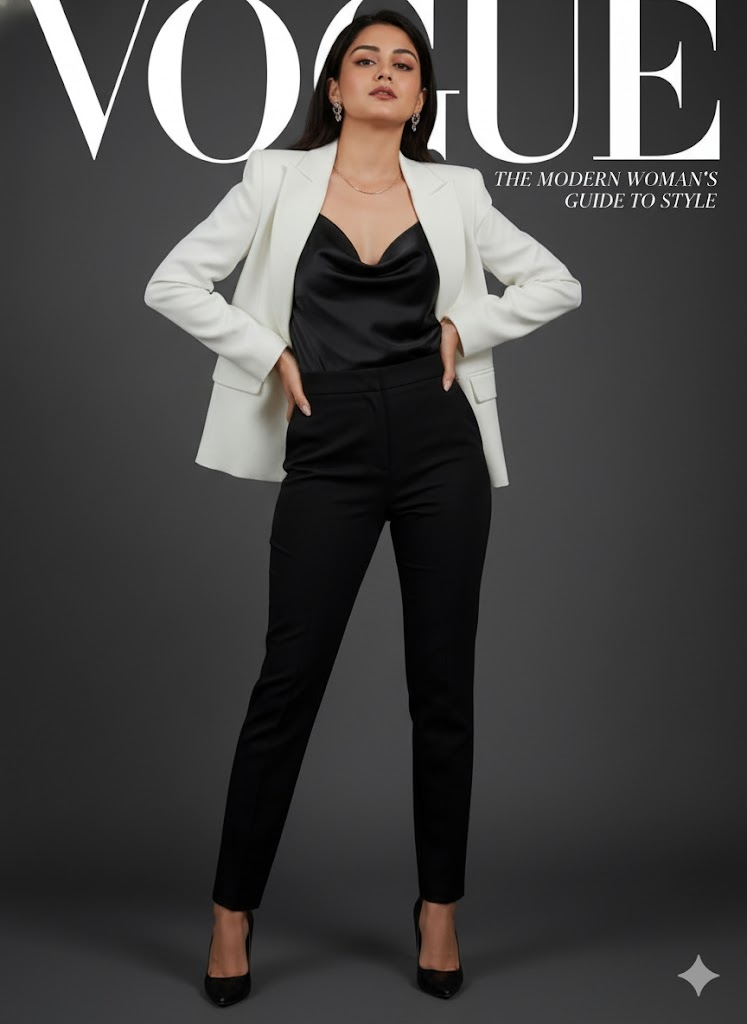
Reimagine the uploaded image in a vibrant, pop art style reminiscent of Andy Warhol. Use bold, contrasting colors in flat blocks, and create a silkscreen print effect. The subject should be repeated in a grid with different color schemes. --ar 1:1 --style raw --v 6